AI Video Editors Compared: Pros, Cons, and Best Uses for 7 Automated Tools
Spending too much time editing videos? AI can now automatically generate captions, slice long videos into highlight shorts, and even let you edit video like text. Here's a breakdown of 7 top AI video editors, their pros and cons, and how to choose the right one for your needs.
Video editing is one of the most time-consuming parts of the creative process—adding subtitles, pacing, and finding highlight clips. A single 10-minute video can easily take three hours to edit. Over the past two years, AI has slashed both the barrier to entry and the time required: automatically transcribing speech for subtitles, chopping long videos into social media shorts, and even letting you "delete the transcript to delete the footage." This article pits 7 mainstream tools head-to-head to help you find the right match for your workflow.
First, Determine What You're Editing
- Polishing a complete video (YouTube long-form, tutorials): You need a solid timeline editor + auto-subtitles.
- Turning long videos into a batch of short-form content (Shorts, Reels, TikTok): You need a repurposing tool that can "automatically find highlights, slice clips, and add subtitles."
Pick the wrong category, and you'll constantly feel like the tools are working against you.
Head-to-Head: Pros and Cons of 7 Tools
CapCut | Feature-packed and free, offering auto-subtitles, templates, effects, and background removal across both mobile and desktop. Pros: Free, powerful, and fast to learn; cons: Advanced professional needs (multi-track precision editing) fall short compared to professional software.
Descript | Edits video by turning it into a text transcript—delete the text, and the corresponding footage is deleted. It also removes filler words like "um" and "uh" with one click. Pros: Ultra-intuitive for talking-head videos and interviews; cons: Weaker when it comes to purely visual effects.
Opus Clip | Drop in a long video, and it automatically identifies the best moments, cuts them into multiple vertical shorts, and generates subtitles. Pros: Fully automated "long-to-short" conversion that saves a ton of time; cons: Limited flexibility for fine-tuning.
Vizard | Similar to Opus Clip, it specializes in quickly slicing long videos, meetings, and interviews into social media short clips with subtitles. Pros: Fast cutting and multi-language support; cons: Heavily focused on clipping rather than full-scale editing.
Submagic | Specializes in dynamic short-video subtitles and effects (the kind where words pop up one by one with emojis). Pros: Fast and trendy short-form subtitles; cons: Focused feature set, not an all-in-one editor.
VEED | Online editor + auto-subtitles + translation, usable right in your browser and great for team collaboration. Pros: No installation required, robust subtitle and translation features; cons: Performance on complex projects doesn't match desktop software.
Clipchamp | Microsoft's native online video editor featuring built-in recording, templates, auto-subtitles, and deep Windows integration. Pros: Free, user-friendly, and integrates smoothly into the Office ecosystem; cons: Advanced features are relatively basic.

At a Glance: How to Choose
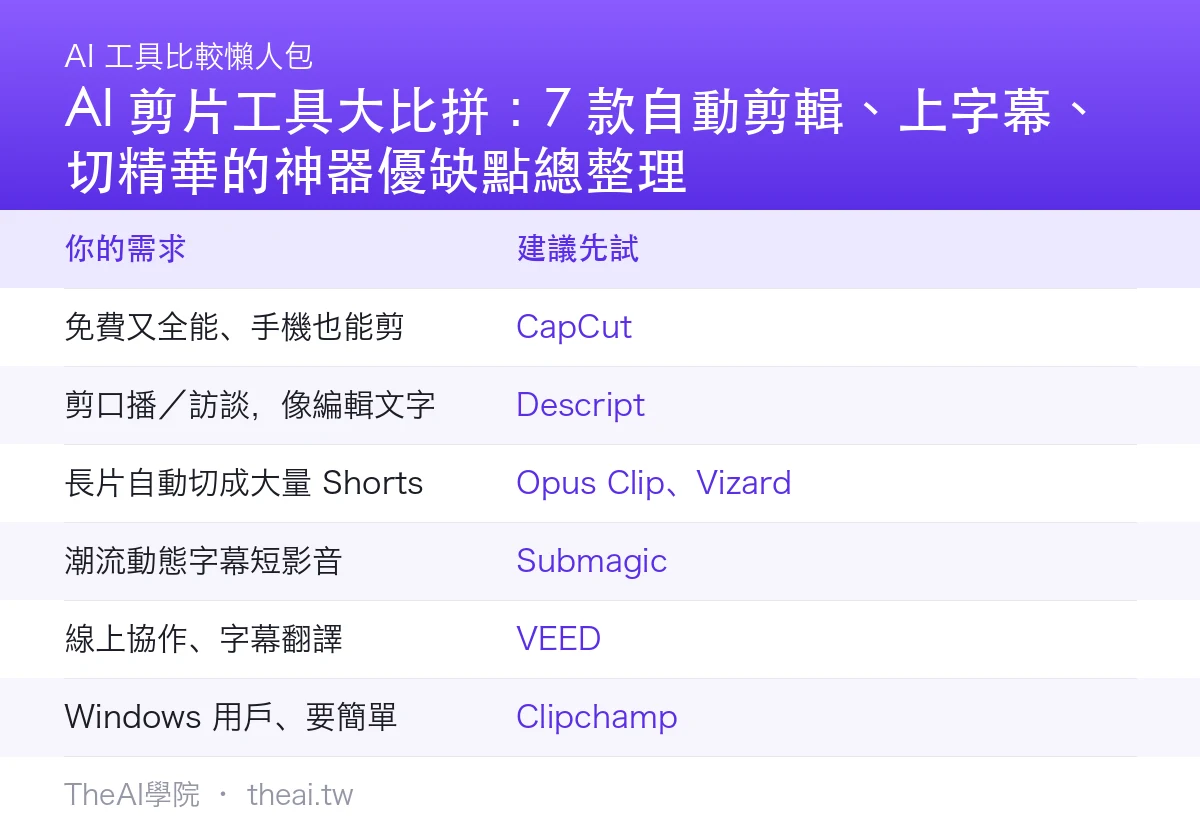
| Your Need | Recommended First Step |
|---|---|
| Free, all-in-one, and mobile-friendly | CapCut |
| Editing talking heads/interviews like text | Descript |
| Automatically cutting long videos into loads of Shorts | Opus Clip, Vizard |
| Trendy, dynamic short-video subtitles | Submagic |
| Online collaboration and subtitle translation | VEED |
| Windows user looking for simplicity | Clipchamp |
Practical Workflow: Turning a Live Stream Into a Week's Worth of Shorts
- Upload your live stream file to Opus Clip or Vizard to automatically generate 8 to 10 highlight shorts.
- Pick the top 5 and use Submagic to apply trendy dynamic captions.
- Drop sections that need tweaking into CapCut to polish and add an intro.
- Schedule a week's worth of posts—record once, use all week.
Things to Keep in Mind
- Always proofread auto-subtitles: Chinese proper nouns and homophones often trip up AI, so do a quick check before publishing.
- Watch out for copyrighted music: Stick to the platform's built-in licensed tracks and avoid unauthorized copyrighted songs.
- Don't over-rely on templates: Overusing templates makes your content look generic; inject your own style where appropriate.
TheAI Academy Summary & Verdict
The golden combination for video editing is actually quite simple: use Opus Clip for short-form clips, and CapCut or Descript for fine-tuning and subtitles. For a more comprehensive guide on running your channel, check out our Guide to Running a YouTube Channel with AI.
Summary in one sentence: Figure out whether you're editing long videos or short clips, pick the right tool, and watch your editing time drop by half.
Sources
This article is compiled from hands-on testing of various tools by our editorial team (July 2026). Tool features, speech recognition accuracy, and pricing plans are subject to change; please refer to official websites for the latest details. Always pay attention to licensing when using music and media assets.
Frequently Asked Questions
Should I use different tools for short-form and long-form videos?
Yes, it's recommended. To automatically cut long videos into a batch of Shorts or Reels, repurposing tools like Opus Clip or Vizard save the most time. For polishing a full-length video with intros and transitions, use CapCut or Descript. Using the wrong tool for the job makes the workflow frustrating.
Can I use AI-generated captions straight out of the box?
It's not recommended. AI often butchers proper nouns and homophones, especially in Chinese. Always do a quick manual check before publishing, otherwise typos will hurt your video's quality and draw corrections from viewers.
I have zero video editing experience. Which one should I learn first?
Start with CapCut. It's free, fully featured, works on both mobile and desktop, and has tons of templates for the fastest learning curve. Once you're comfortable, you can branch out into specialized clipping or captioning tools as needed.